01
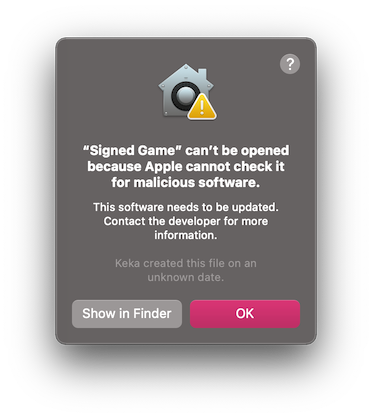
Launch and click "Cancel"
Open the downloaded .dmg, drag Mocklay into Applications, and launch it. When the Gatekeeper prompt appears, click "Cancel" (do not click Move to Trash).
Mocklay runs 100% locally and is safe. Because we do not buy enterprise certificates, confirm launch once on first run:
Open the downloaded .dmg, drag Mocklay into Applications, and launch it. When the Gatekeeper prompt appears, click "Cancel" (do not click Move to Trash).
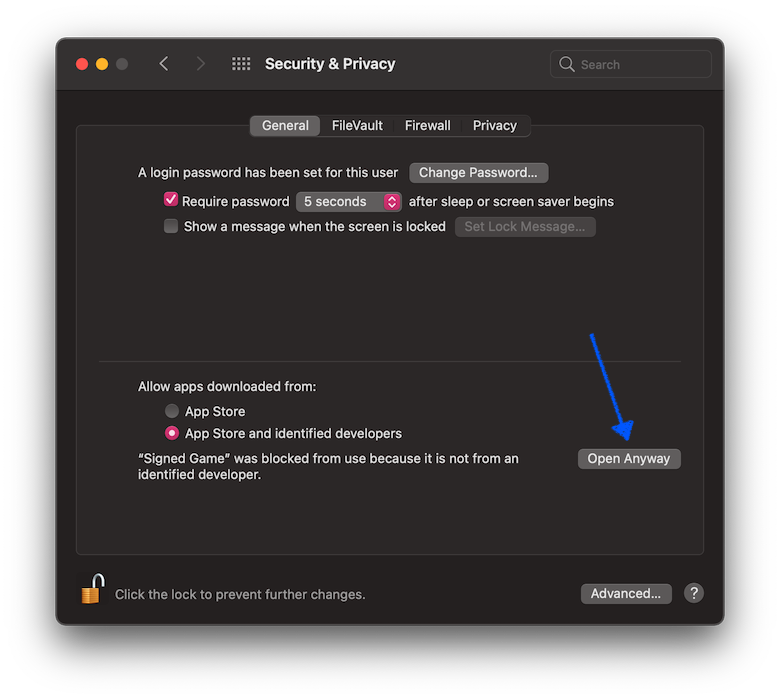
Click Apple menu () → System Settings → Privacy & Security. Scroll down to "Security" and click "Open Anyway", then enter your Mac password.
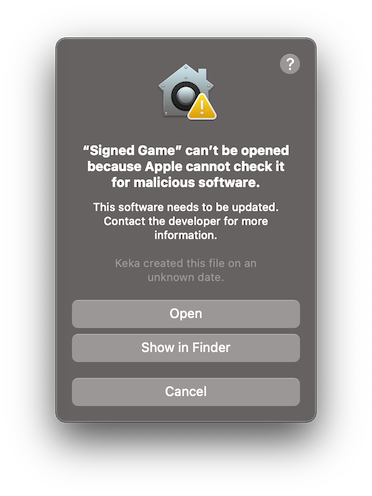
In the confirmation prompt, click "Open". Mocklay launches immediately, and macOS remembers this permanently — all future launches open normally.
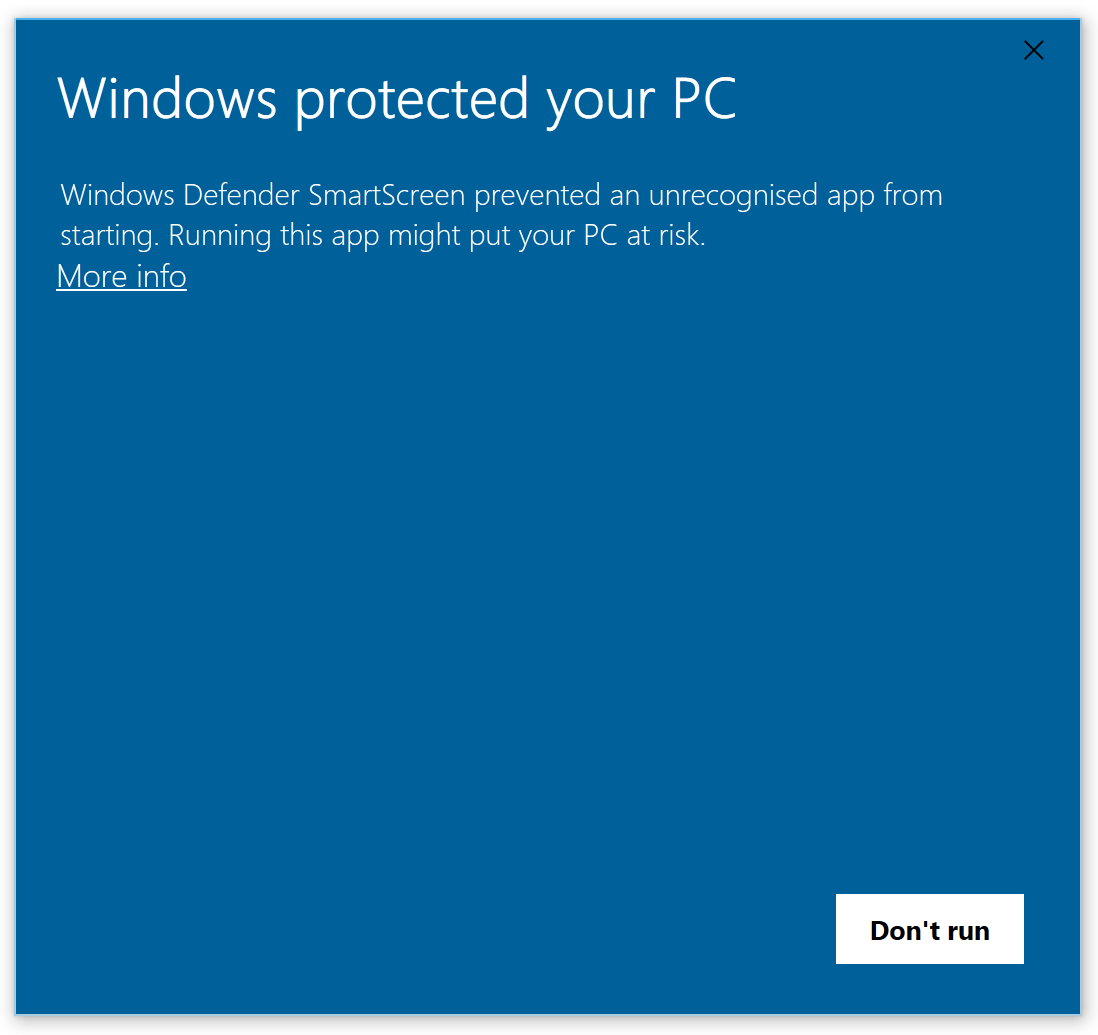
Launch the .exe installer. In the blue "Windows protected your PC" window, click the "More info" link.
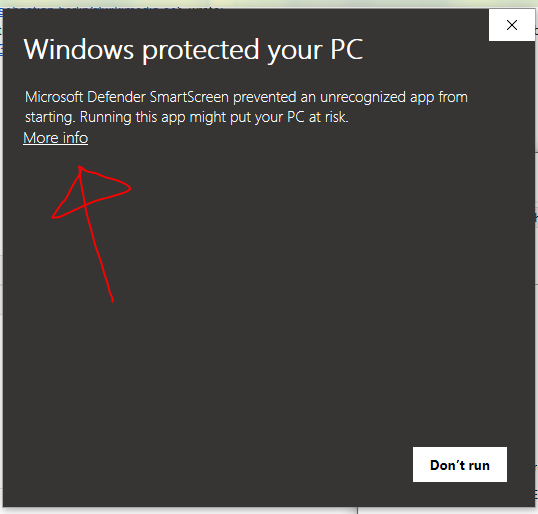
After clicking "More info", a new button labeled "Run anyway" appears in the bottom-right corner. Click it to proceed.
Click "Yes" on the User Account Control prompt. Installation finishes normally and Mocklay is ready to launch.